How to restore deleted pictures and videos on android

We are going to share a trick that will definitely help you recover your deleted photos or videos from your Android smartphone. Read through the whole page to know just how to do it.
We love to capture pictures in our day to day life. Certain pictures captures over moments. But what if they get deleted for some reasons? .
In that case, we think that we wasted our all pictures/videos. But in the meantime, you can actually recover your photos. There are considerable applications available on the internet to recover the deleted photos from Android but many of them not work up to the limit
So in this post, you will get to know the best methods and software to recover your deleted photos/videos from Android. By this software, you can easily recover any pictures or videos even if you have deleted your pictures months ago.
METHOD I: Using wondershare Dr.phone

Requirements:-
USB Debugging enabled on Android device.
Wondershare Dr. Fone software.
Steps to Recover Deleted Photos From Android:
Step 1.
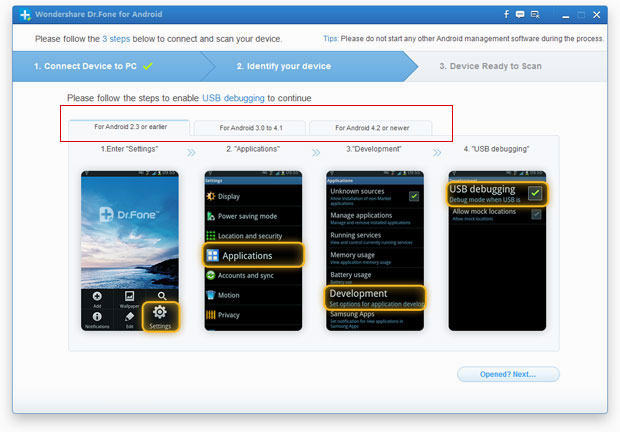
First of all, you need to download and install a software Wondershare Dr. Fone. Now install this software on your computer. After that enable USB debugging of your Android.
Wondershare Dr. Fone
For Android 2.3 or earlier: Enter Settings > Click Applications > Click Development> Check USB debugging
For Android 3.0 to 4.1: Enter Settings > Click Developer options > Check USB debugging”
For Android 4.2 or newer: Enter Settings > Click About Phone > Tap “Build number” for several times until getting a note ‘You are under developer mode’
Back to Settings > Click Developer options > Check USB debugging.
Step 2.
You can now connect your Android device to your computer with your USB Cable. Please make sure that your mobile should be charged up to 35%. Make sure you have enabled USB debugging in your smartphone.

Wondershare Dr. Fone
Now it will ask you to analyze and scan your device. You simply click “Next” to perform the scan, it will ask you for your permission on your connected phone simply allow all permissions.
Step 3.
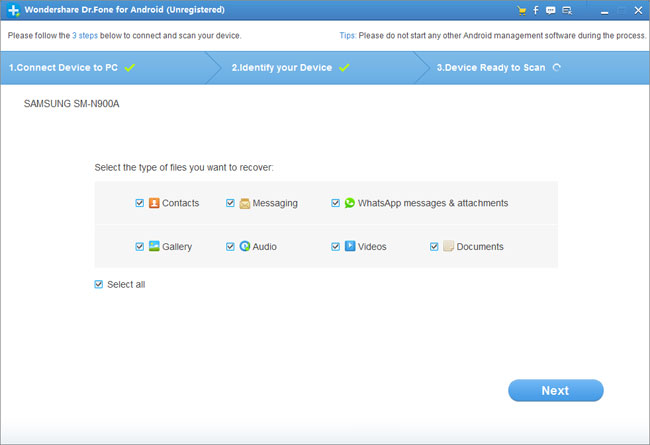
Now you will be asked to select your preferred file type to scan. So if you want to scan for your images/Videos simply select Gallery and click “Next”
Wondershare Dr. Fone
Step 4.
You will have two options, one is to scan for deleted files and the other one is for scanning all files. You need to select the option of “Scan for deleted files” You can perform the scan in two modes Standard and Advanced. Advanced mode is for those who need to scan deeply.

Wondershare Dr. Fone
Step 5.
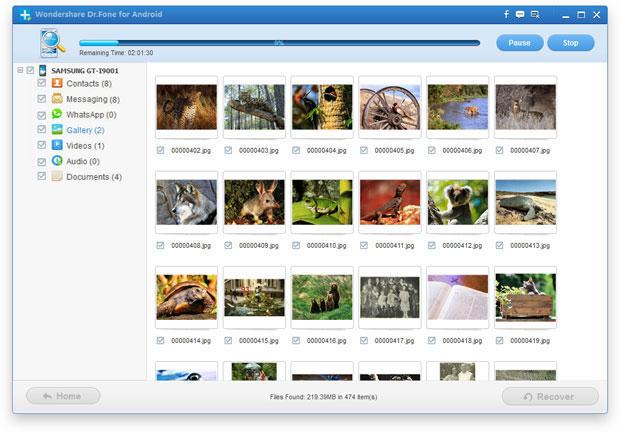
Once the scan is completed, you will have the complete preview over your deleted pictures/videos, you can recover each and every one of them simply click on “Recover” to get all those deleted files.
Wondershare Dr. Fone
METHOD II: Using Yodot recovery for android
This is the ultimate recovery product for your Android smartphone this can even get back files from SD card and also from phone’s internal storage. It recovers almost every file types.
Step 1.
Download and install the Yodot Recovery for Android on your computer. Now you need to attach your Android phone to PC using USB cable.run to software and wait for Yodot to detect your Android phone.

Yodot Android
Step 4.
Once detected you will see two option of recovery “Deleted file recovery” and “Lost file recovery” choose which ever one you prefer.

Yodot Android
Step 5.
Select the drive that represents your Android Device and wait for it to finish the scanning process.

Yodot Android
Step 6.
You will see all the images that you can recover. You can preview then or simply save it to computer or Android.

Yodot Android
And that's all there is to it.


Comments
Post a Comment